Deep Learning Tool Interface
The Deep Learning Tool dialog contains a number of panels — Model Overview, Model Editing, and Model Training — that you access to complete a model training workflow.
Choose Artificial Intelligence > Deep Learning Tool on the menu bar to open the Deep Learning Tool dialog, shown below.
Deep Learning Tool dialog
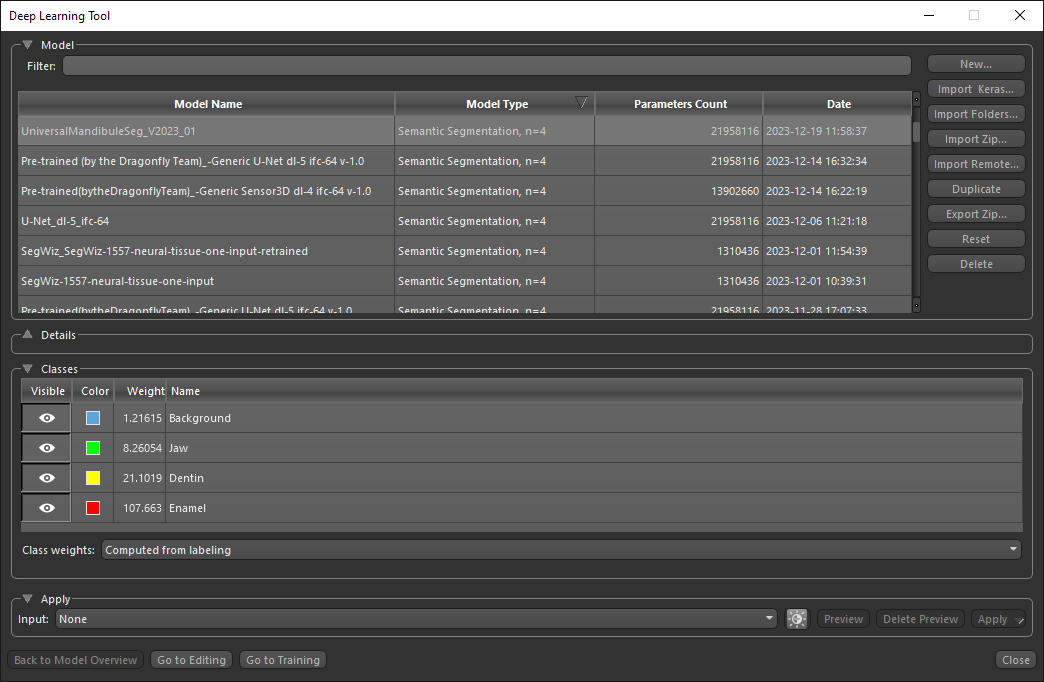
Model Overview panel… Provides a list of all trained deep models and details about the selected model, as well as options to import, generate, and export models (see Model Overview Panel).
Model Editing panel… Provides options to edit the network structure of a model (see Model Editing Panel).
Model Training panel… Provides inputs for training a model and options for setting the training parameters (see Model Training Panel).
Options to preview the inference of a selected model, as well as options to apply a model to a selected dataset are available in the Apply box, appear on the Model Overview and Model Training panels in the Apply box.
In addition, a series of general controls, which appear on the multiple panels of the Deep Learning Tool dialog, are described in the following table.
| Description | |
|---|---|
| Back to Model Overview | Opens the Model Overview panel (see Model Overview Panel). |
| Go to Editing | Opens the Model Editing panel (see Model Editing Panel). |
| Go to Training |
Opens the Model Training panel (see Model Training Panel).
Note The Model Training panel also includes a Train button to initiate training. Note You should also note that models are saved automatically after training in a proprietary DRA file format (*.dra extension) with an accompanying JSON file (*.json extension) that contains the model metadata. Model files are saved in the |
| Close | Closes the Deep Learning Tool dialog. |
